Quick editors
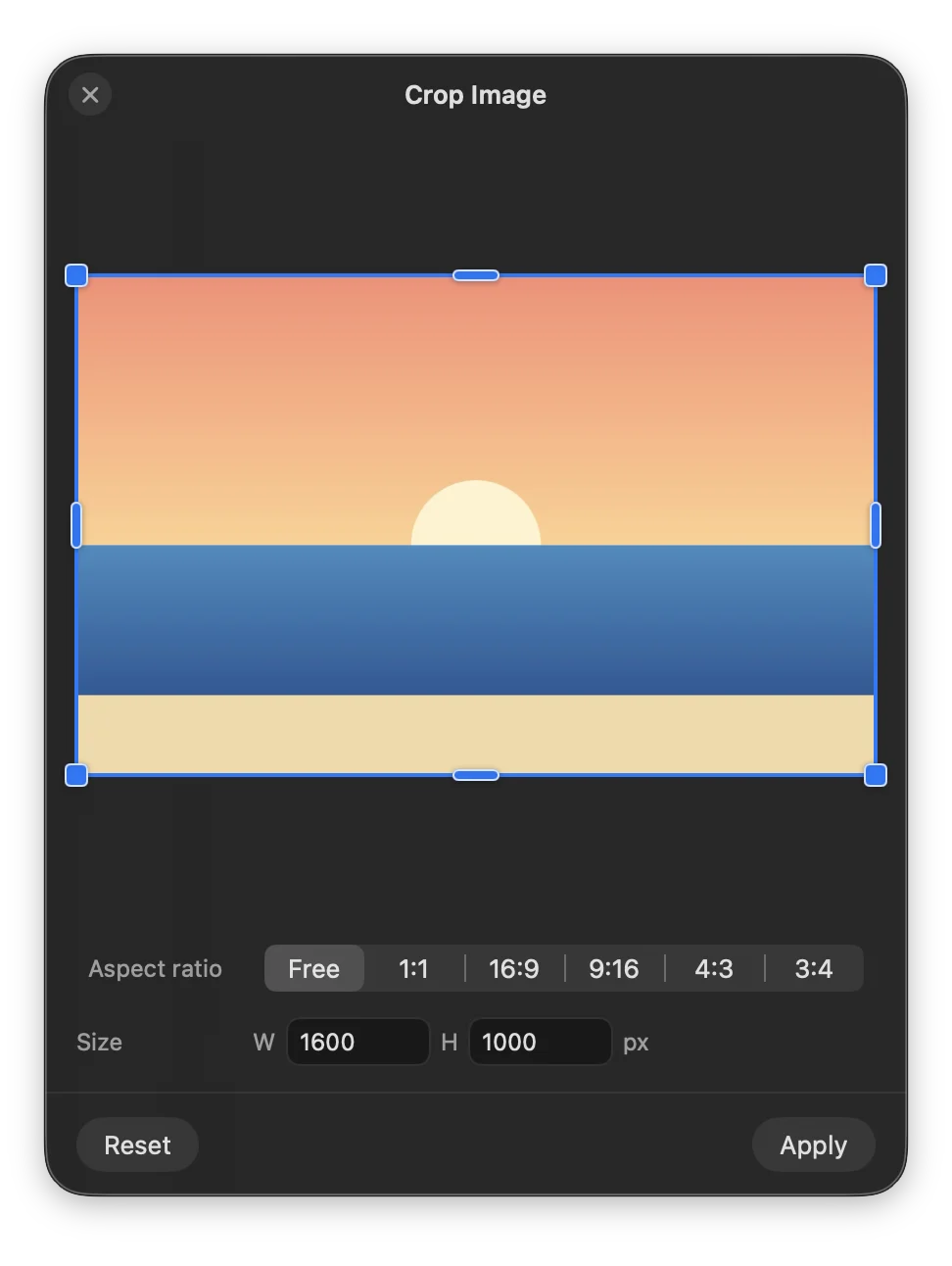
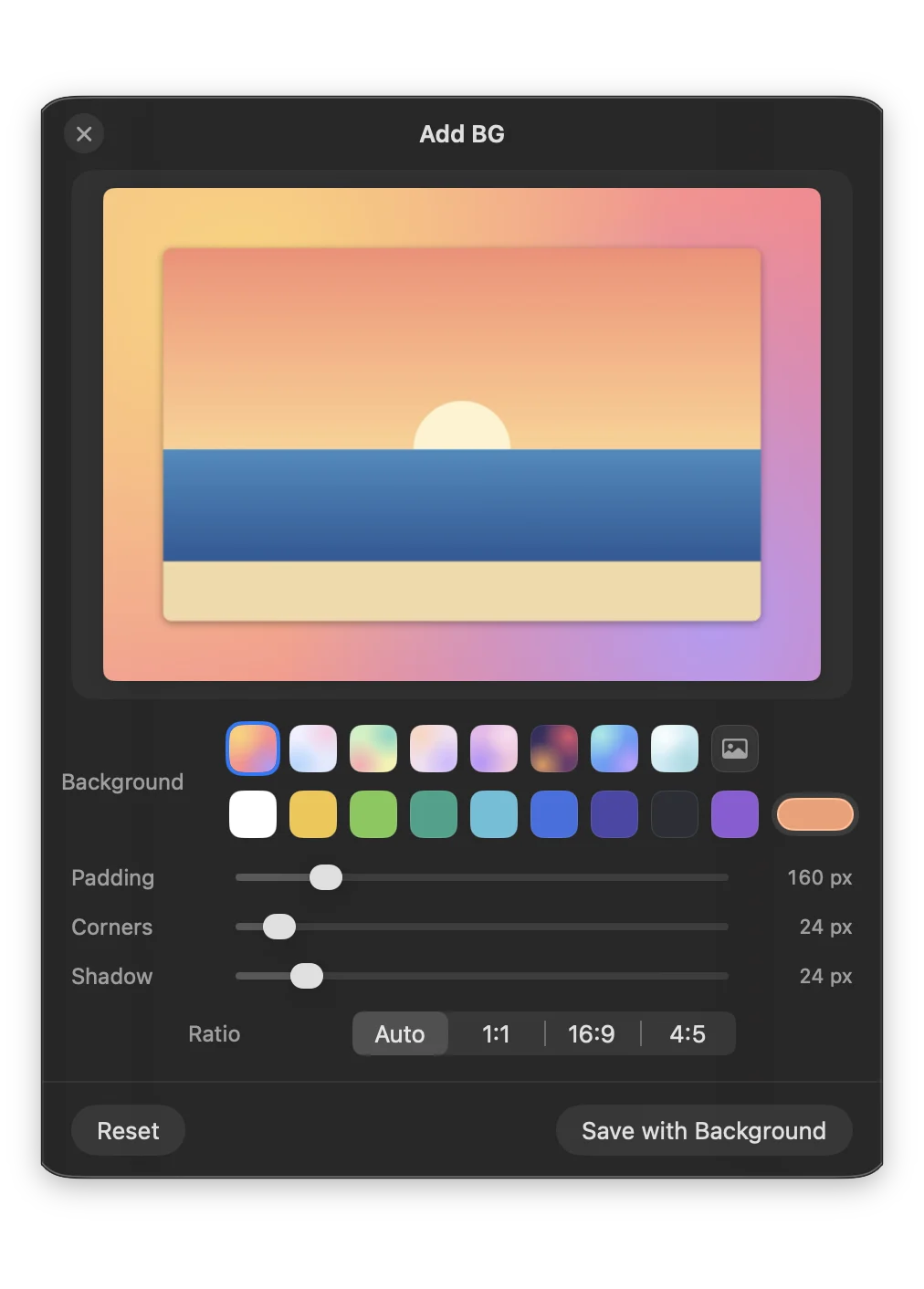
Crop, Annotate, Redact, Remove background, Resize, Compress. Each opens a small window by the file and saves a copy, like Photo Cropped.jpg, so you can drag the result straight into another wheel.

While you drag any file, tap a key and a wheel opens under the pointer: drop on a wedge to convert it, edit it or park it on a shelf.
Drag the file, then tap ⇧
A preview in your browser. In the app, it works on any file you drag in macOS.
It starts with a drag you were going to make anyway: from Finder, the Desktop or any app that lets you drag files.
Photos, PDFs, documents, videos, folders. Several at once works too.
⇧ Convert, ⇧⌥ Tools, ⌃ Actions. A quick tap is enough; the wheel stays open until you drop.
The result is saved next to the original, and nothing is ever overwritten.
Each wheel only shows what makes sense for the file you're dragging.
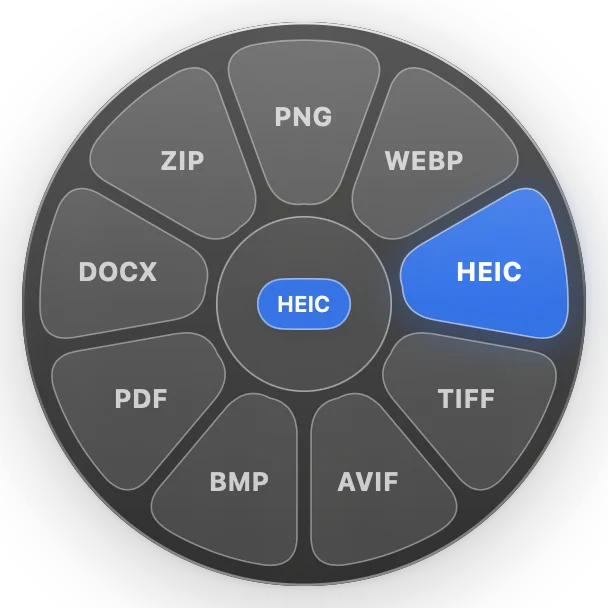
Turn a file into the format you need. The wheel never offers the format it's already in, and several files convert together.
Results land next to the original: Photo.jpg → Photo.png.
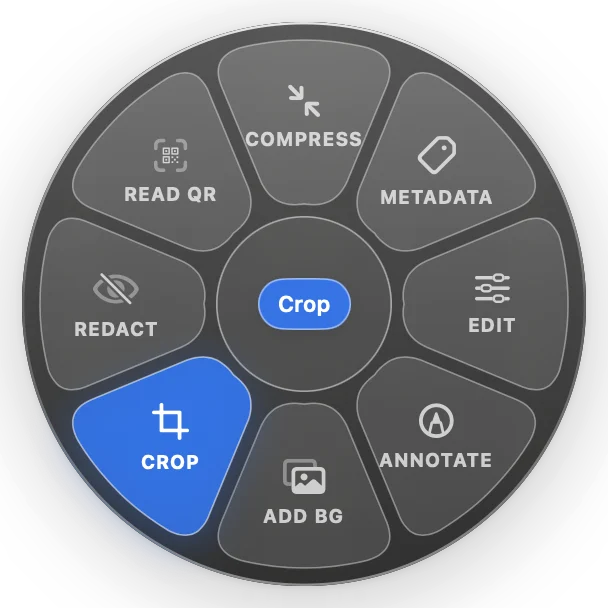
Quick edits without opening a full app. Most tools open a small focused editor and save a copy beside the original. Busy wheels show six at a time; rest on ⋯ for more.
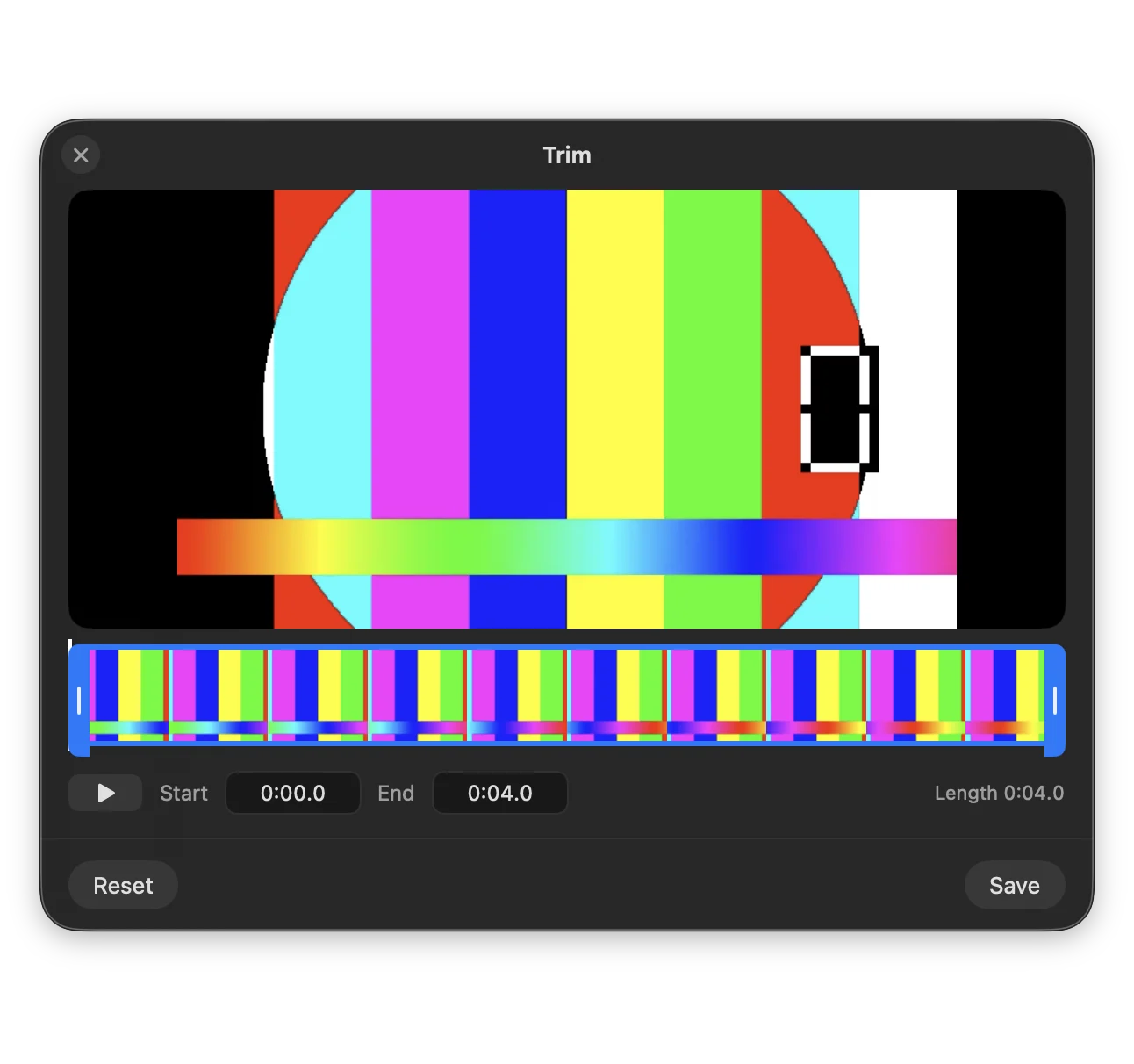
For PDFs: combine, reorder pages, split. For video and audio: trim, split, merge, change speed.
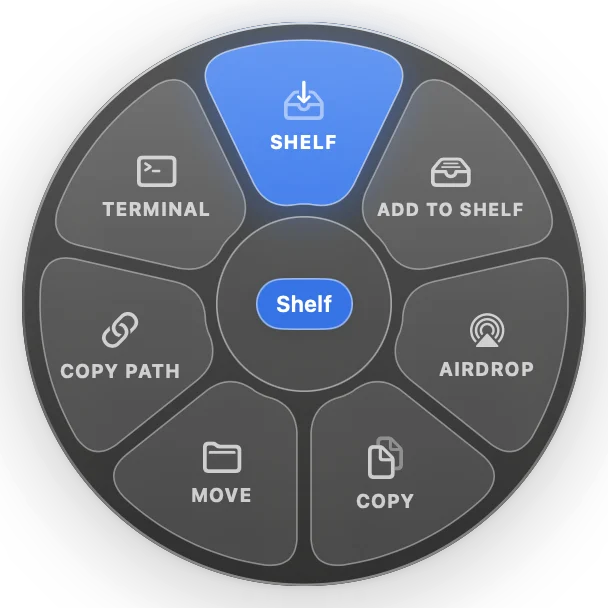
Everyday file chores, right where the file already is.
With a shelf open, Add to Shelf drops files on the one you used last.
Everything opens next to the pointer and closes when it's done.
Crop, Annotate, Redact, Remove background, Resize, Compress. Each opens a small window by the file and saves a copy, like Photo Cropped.jpg, so you can drag the result straight into another wheel.
Drop files on the Shelf wedge and they wait in a small floating window. Gather from anywhere, then drag them out together.
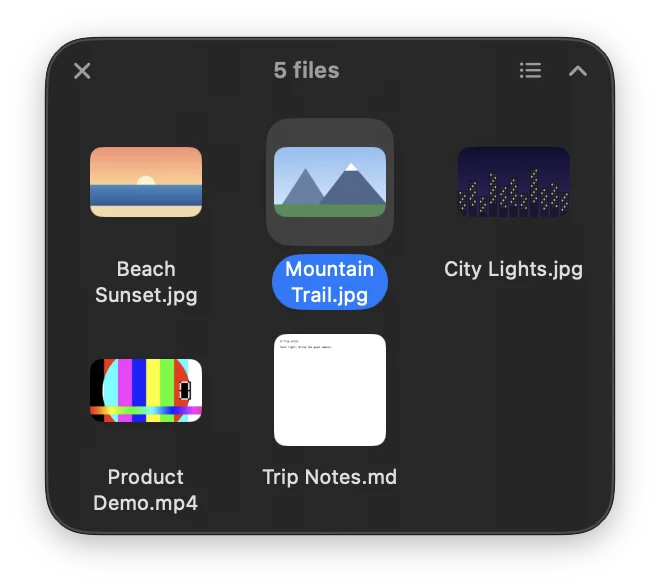
Dock it to a screen edge; it's still there after a restart.
Select files in Finder and press ⌃⌥Space. Arrows choose, Tab switches wheels, Return runs it.
Longer jobs show a small card where you dropped the file. Click × to cancel.

Results say what happened: “1 resized · 2 already smaller”.
A filmstrip for video, a waveform for audio. Then split, merge, change speed, rotate or mute.
Drag several files at once; mixed selections only show the formats every file supports.
* Optional and free: some audio and video formats need ffmpeg (brew install ffmpeg, plus brew install webp for WEBP), and slides need LibreOffice (brew install --cask libreoffice). Those wedges appear once the tool is installed.
Every conversion and tool runs on your Mac. Files never leave it. The only network access is checking GitHub for updates, which you can turn off.
MIT licensed. Read the code, file issues and send pull requests on GitHub.
New versions install from inside the app. Each update is signed, so only genuine OpenShelf releases are accepted.
No account No telemetry No Accessibility permission needed
OpenShelf isn't notarized by Apple yet, so the first time you open it macOS says it can't verify the app. That's expected, and it only happens once.
xattr -dr com.apple.quarantine /Applications/OpenShelf.appYes. OpenShelf is free and open source under the MIT license. No account, no subscription.
No. Every conversion and tool runs on your Mac, offline. There's no telemetry; the only network access is checking GitHub for updates, which you can turn off in Settings.
macOS 14 Sonoma or later, on Apple silicon and Intel Macs.
Most formats work out of the box. Two free, optional tools add more:
ffmpeg (brew install ffmpeg) adds MP3, OGG, Opus, WMA, MKV, WebM, AVI, WMV and GIF; brew install webp adds WEBP.
LibreOffice (brew install --cask libreoffice) adds slides (PowerPoint and ODP) and XLS/ODS spreadsheets.
Their wedges stay hidden until the tool is installed.
OpenShelf checks GitHub once a day (it asks the first time). When a new version is out you'll see its release notes and an Install Update button, and the app restarts on the new version. Updates are signed, so only genuine releases install. You can also choose Check for Updates… from the menu bar, or turn automatic checks off in Settings.
Yes. Click the OpenShelf wheel in the menu bar, choose Settings…, and pick the key for each wheel. The ⌃⌥Space shortcut can be changed or turned off in Settings → Keyboard.
Free forever. No account, no subscription, no uploads.